Keplr Wallet: The Complete Guide - Overview, setup, deposit, and staking

When connecting to dApps, all other addresses are automatically approved/added.
Built-in staking, cross-chain transfers, native support for Bitcoin, Ethereum, and its EVM networks.
Overview
Keplr is a browser and mobile wallet focused on interacting with the Cosmos ecosystem. It was developed by the independent team Chainapsis and has become the de facto standard due to its support for the IBC protocol, which includes networks such as Cosmos Hub, Osmosis, Juno, and others.
What does it support? It supports Cosmos, BNB, Ethereum (and L2 networks: Optimism, Arbitrum, Polygon, etc.). It also has direct support for Bitcoin.
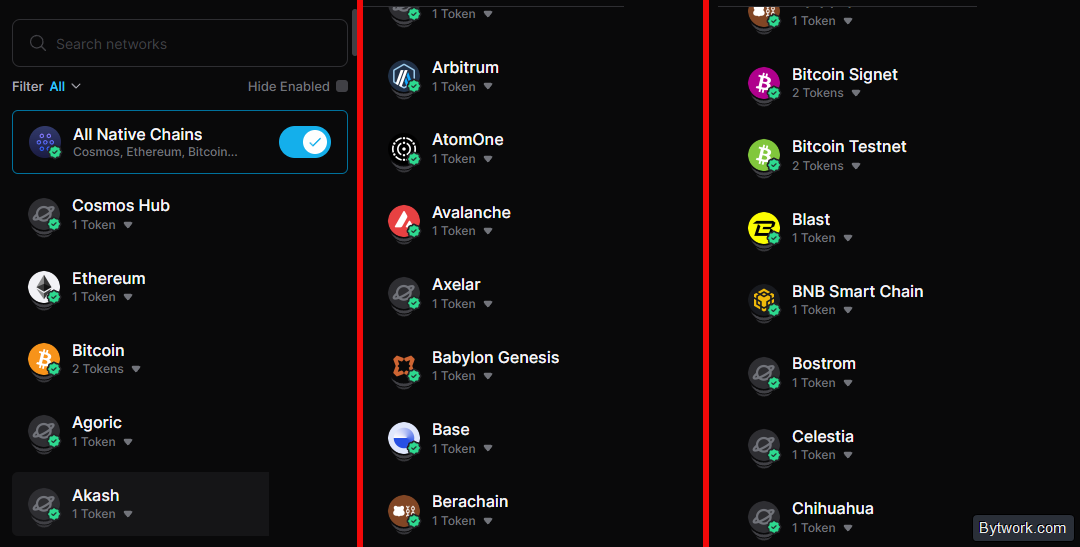
The wallet can store, send, receive crypto, as well as stake and connect to dApps. You can also add custom tokens and networks.
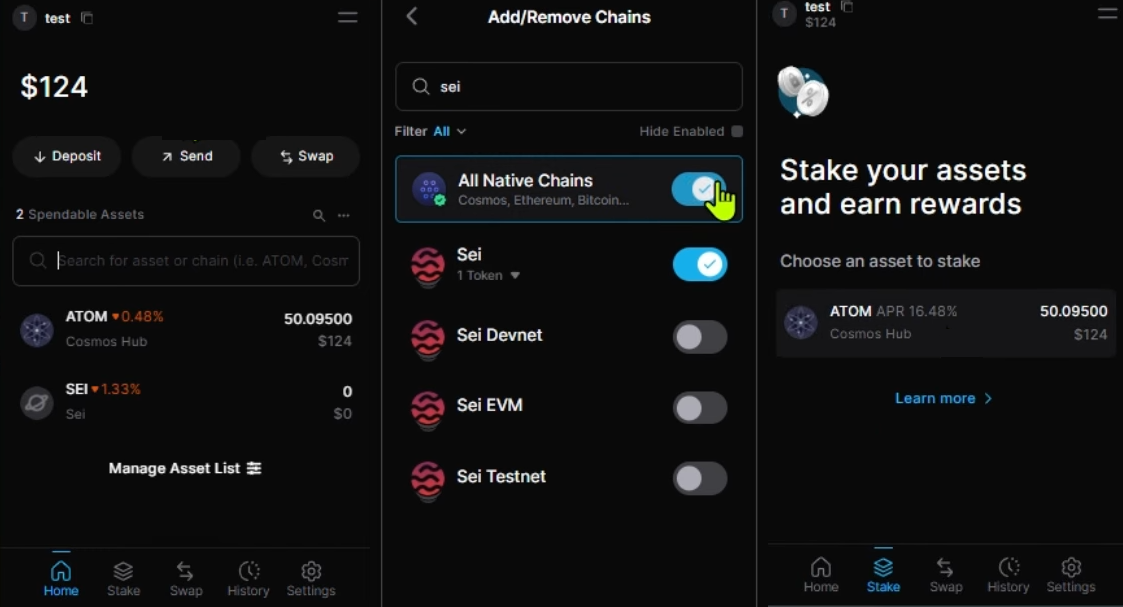
Thanks to the Inter-Blockchain Communication (IBC) protocol, Keplr allows transferring tokens (e.g., ATOM) between networks (e.g., from Cosmos Hub to Osmosis) without using external bridges. This is quite convenient.
There is also a separate web dashboard providing detailed portfolio analytics, asset allocation, and transaction history.

For maximum security, Keplr offers a multi-signature feature. This means that to send a transaction, for example, 2 out of 3 signatures are required.
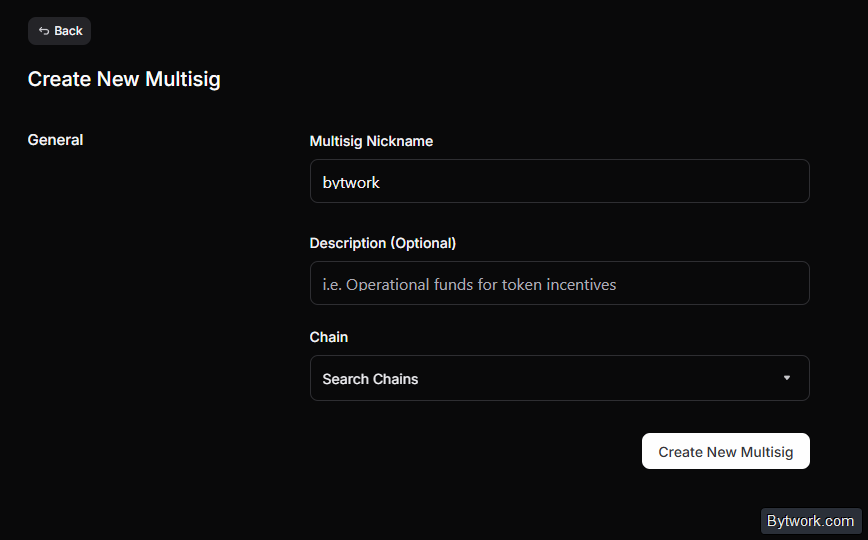
Each participant in the multi-sig must have their own account (wallet) in Keplr. In the interface multisig.keplr.app, participants can connect their wallets to sign transactions. In a 2-of-3 multi-sig scheme, losing one key is not critical and will not lead to loss of access to funds. However, if you lose 2 keys, access will be lost forever.
Let's look at security in more detail.
Security and Features
Keplr's security is ensured by its non-custodial architecture. Non-custodial storage means that you yourself control your cryptocurrency keys.
Keplr also applies standard security measures: encrypted seed phrase and password. And on smartphones, there is biometrics.
The code is completely open source and has undergone third-party security audits. However, the audits themselves have not been publicly released. And since it is a software wallet, it is potentially vulnerable – this point should be considered for any hot wallet. For this reason, security gets 3 and a half stars out of 5.
We'll just add that, in terms of security, only install the official version from the website, without clicking on links from search engines.
How to download and install?
Keplr is available as a browser extension and as a mobile version for iOS/Android. In the browser (e.g., Chrome), click Add to Chrome. After adding, for convenience, pin the Keplr icon to the top right panel.
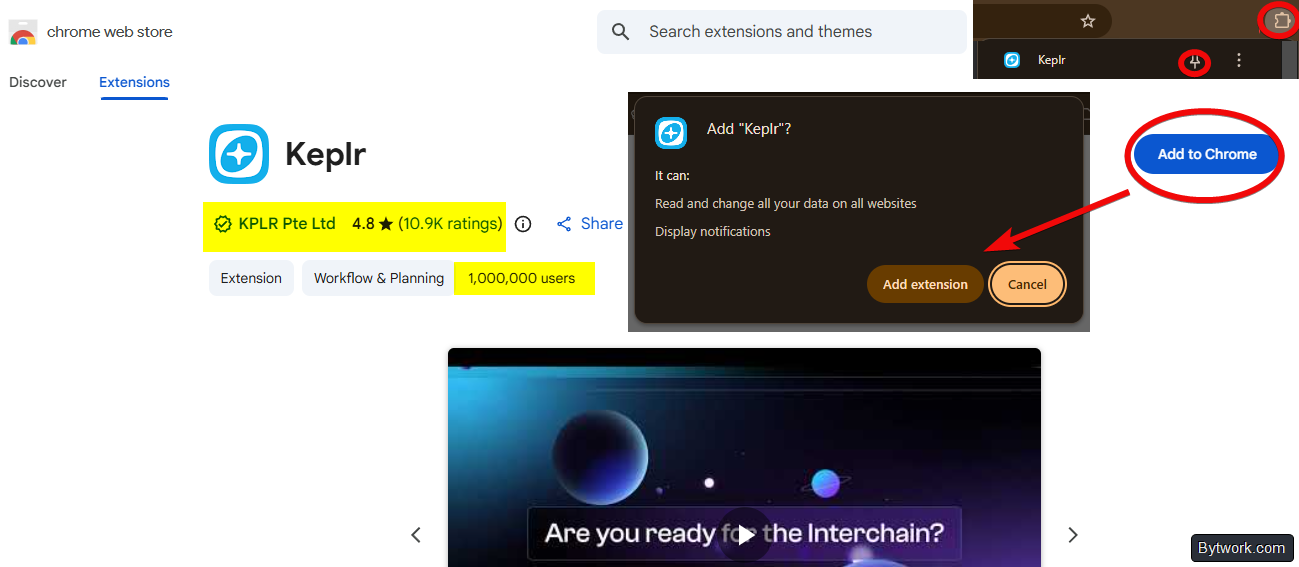
The wallet will open, and you will see a choice: create a new account or import an existing one. By the way, you can also import a seed phrase from MetaMask here. But if you are new to the Cosmos ecosystem, it's better to create a new wallet.
How to create a new wallet?
To create a new wallet, in the installation menu click Create a new wallet. Then select Create new recovery phrase.
For security reasons, do NOT choose the sign up with google option because this option will not give you a wallet recovery phrase and will tie the wallet to a third-party service.

When choosing the seed phrase option, the wallet will warn that only through this single phrase can access to the wallet be restored. Therefore, it is extremely important to make a backup of the wallet using this phrase.
How to make a backup?
You will be shown your recovery phrase. Write down the words one by one very carefully. Record the phrase in a safe place where no one can access it!
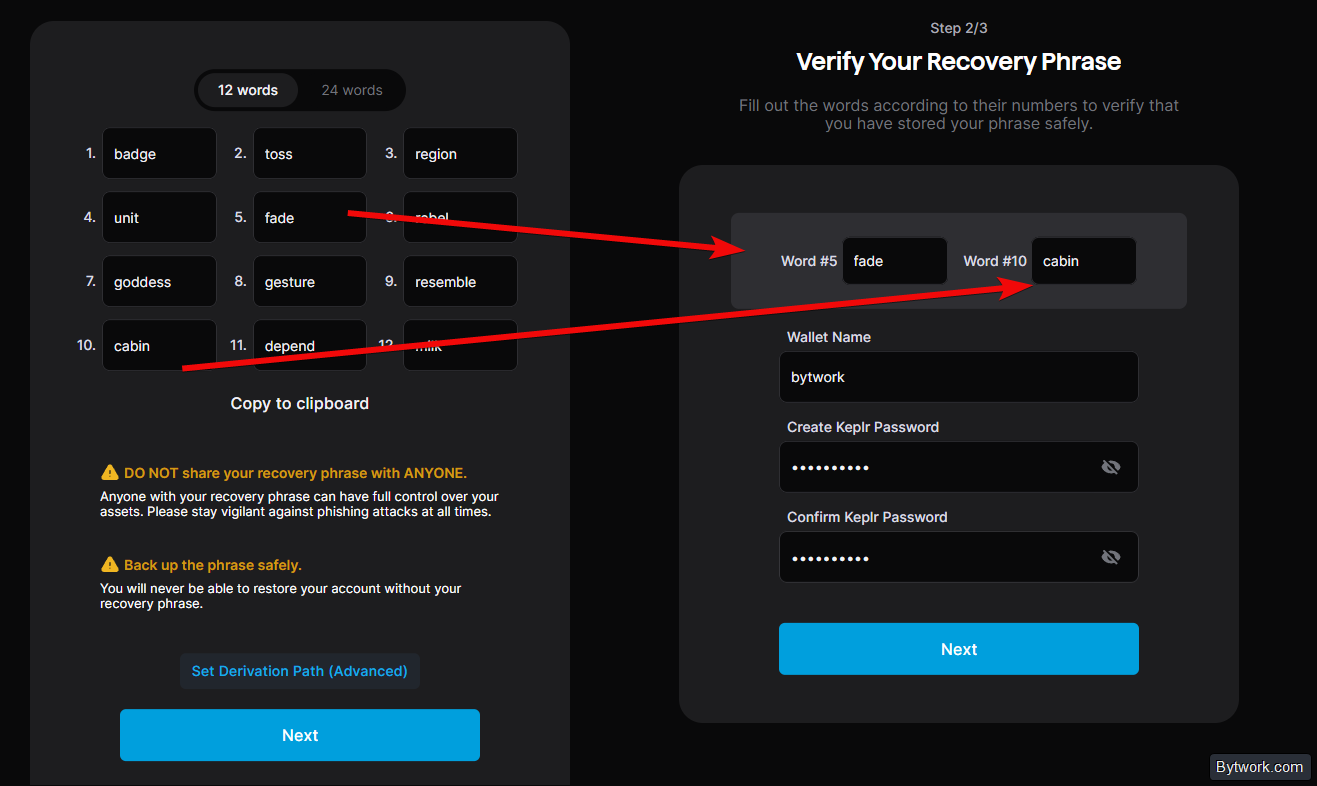
Do not show your seed phrase to anyone. We revealed ours only for the purposes of this guide! These words contain all your cryptocurrency. It is with their help that the wallet gains access to the blockchain and your funds!
Brief safety memo for seed phrases:
- The phrase should be written down on paper or another reliable physical medium.
- Absolutely do not take screenshots, save the phrase in text files on your PC, in phone notes, in Telegram or other messengers. Any malware can gain access to such files.
- If you temporarily copied the words to the clipboard or a text file during installation, you must immediately write them down manually and delete the digital copy!
After writing them down, click Next. The wallet will ask you to enter a few words in random order for verification. Next, you can give the wallet a name - come up with any name. Below, set a password (at least 8 characters) and confirm it.
Next, you will be offered to select networks. By default, it's set to leave all.
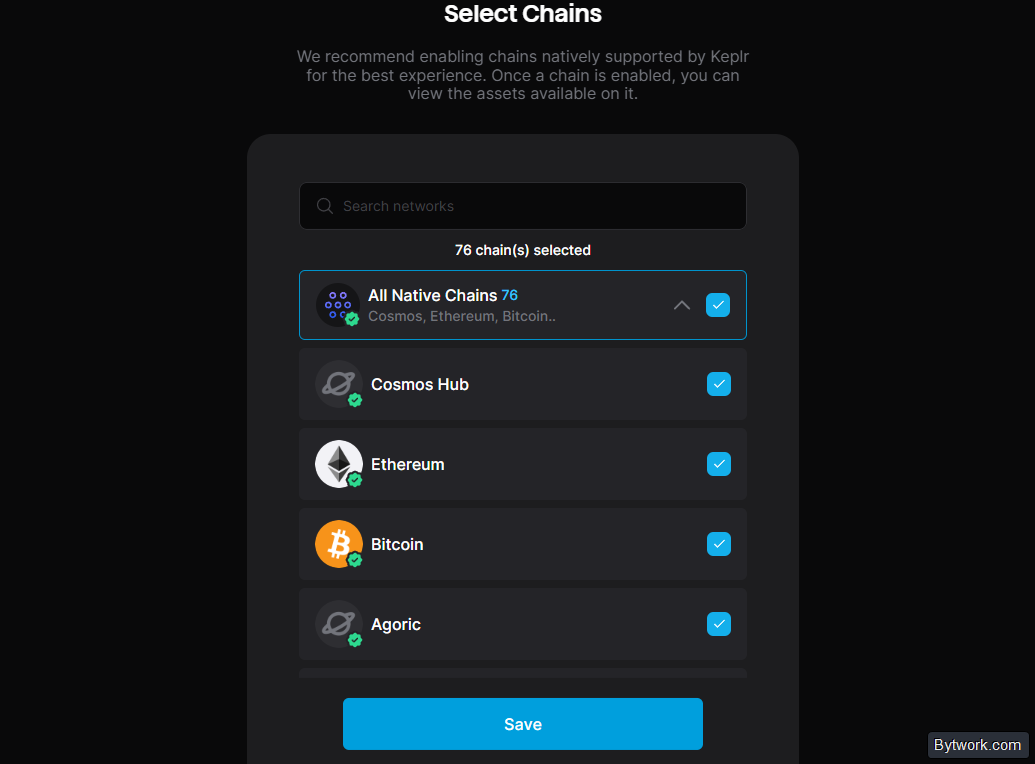
For now, leave it as is, save the settings, and complete the creation.
How to use?
In this wallet, you can receive, send crypto, as well as do things like swap, staking, NFT, and more.
First, you need to understand how to top it up and where to get addresses.
In addition to Cosmos and EVM networks, Keplr also supports Bitcoin. And addresses for each will be different.
How to get an address?
To get an address, select a token from the list and click on it. For example, let's choose ATOM and see the address at the top. And by clicking the Receive button, we also get its QR code.

It's important to remember that the wallet address will be unique for each network! For example, the address for ATOM is not the same as the address for ETH.
How to top up?
As an example, let's top up with Atom coin and copy its address. Then go to an exchange, for example Bybit, click Withdraw, select your saved wallet address from the list, enter the amount, and confirm.

Tokens arrive within a few minutes. Now that there is Atom at the address, you can stake it to earn rewards.
How to stake?
Staking ATOM gives rewards (airdrops in Cosmos + ~16% APR).
What are the staking conditions?
Click Stake and select a coin - a dashboard will open with a list of coins and the type of staking.

Liquid staking for Cosmos Hub tokens allows staking assets like ATOM or TIA and receiving liquid tokens (e.g., stATOM), which can be used in DeFi. This provides a combination of staking rewards and flexibility, unlike traditional locked staking.
After selecting the coin and staking type, a list of validators will open. Carefully review the offers, conditions, and unbonding period.

Then choose a validator, click Stake, and carefully study the conditions.

How to understand the conditions?
- APR – annual percentage rate - 15.662% (may change)
- Network - Cosmos Hub
- Validator commission - 5% (of rewards)
- Unbonding period - 21 days
- Validator voting power - 0.05%
We also recommend checking validators via Google or X/Twitter before delegating funds.
If you want to start, then confirm (Approve).
Don't forget to consider the risks! When staking tokens, assets are locked for a 21-day unbonding period, during which selling or transferring coins is not possible.
Delegating tokens to a validator with 100% commission nullifies all user earnings! Yield directly depends on the choice of validator.
It is critically important to keep a free balance to pay transaction fees and to securely store the seed phrase, as its loss leads to irreversible loss of all staked funds.
What are the wallet fees?
Keplr does not charge service fees for basic use. Fees are charged for swaps (0.75%), top-ups via bank cards (up to 5%), and for validators in staking. Here are all the details:
| Function | Fee |
| Storing and receiving cryptocurrencies | Free |
| Sending cryptocurrencies | Only network fees (gas) |
| Token swap | 0.75% + gas |
| Buying crypto with fiat | Up to 5% (via MoonPay/Transak) |
| Staking | Validator commission + network fees |
| Bitcoin staking (via Babylon) | 3% of rewards |
How to perform a swap?
To swap one token for another, open the Swap section and select the swap. For example, let's swap Atom for OSMO.
Enter the amount you want to swap. Then click Next, then Approve and wait for confirmation for about a minute.

If suddenly the new token is not visible, add the network through the registry and enable its visibility, as will be shown below.
Another killer feature when swapping is sending coins to other networks. For example, Atom from the Cosmos Hub network can be sent to the Osmosis network, etc. This function is built-in and does not require external bridges. With such a transfer, the Osmosis network will be added automatically if you haven't added it before. The function is located inside the send menu and is called Cross-Chain Send.

Also, for swaps, you can always connect the wallet to DEX platforms. More on this a bit below.
How to withdraw or send crypto?
Withdrawal to an exchange looks like this. Go to an exchange, for example Bybit, and copy the Atom address. Return to the wallet, click Send, select the coin, paste the copied address, enter the amount. Click Next and Approve. For this coin, you do not need to specify a Memo when sending.

Or click on the person icon, select a saved contact, and simply choose the exchange address that was added earlier. Then enter the amount, click Next and Approve, and wait for the coins to arrive.
Now an important point: sending tokens to another exchange, Binance. Here you will need to specify Memo. Go to the exchange and first copy the address, paste it into the wallet, then go back, copy the Memo and paste it into the corresponding field.
We warn you: be sure to insert Memo on exchanges that require it. Otherwise, you will lose your money, and the exchange will not return it. Pay special attention to this.
Now a question may arise: what to do if the wallet stops working?
How to restore the wallet?
To restore the wallet, you only need the seed phrase. There are mobile versions of this wallet on the Play Market and App Store, so you can easily import the seed phrase and use the same address as on your PC.
We'll demonstrate this in the mobile app.
To restore the wallet, click lmport ап existing wallet and select the seed phrase option. If you want to import the wallet via QR code, choose the lmport from keplr Extension option.

Then enter the seed phrase, wallet name, and password. The password can be different – not the one from the PC version. Similarly, you can reset the password any number of times by restoring the wallet with the seed phrase.
What can the Keplr mobile app do?
In general, the mobile app has everything the same as the PC version. The differences are minor. For example, there is a built-in Dapps browser. It's good because the apps in it are verified by the wallet itself, so the risk of phishing is reduced.

Also, unlike the browser extension, the mobile version supports biometric authentication (face scan or fingerprint) for quick and secure access.
In general, it's convenient to have a combination of the PC extension and the mobile app to always have access to all functions of the Cosmos ecosystem from any device.
What advanced features are there?
Here you can add an unlimited number of accounts, create a saved address book, add networks, and connect to Dapps sites. Dapps are like extensions of the wallet's functions. For example, you can find apps for asset swaps, automatic reinvestment of staking rewards (Restake.app), make cross-chain transfers, etc.
How to connect to Dapps sites?
To connect, choose a project, for example the Osmosis exchange, and click Connect Wallet at the top right. From the dropdown list, select Keplr and confirm in the wallet popup.
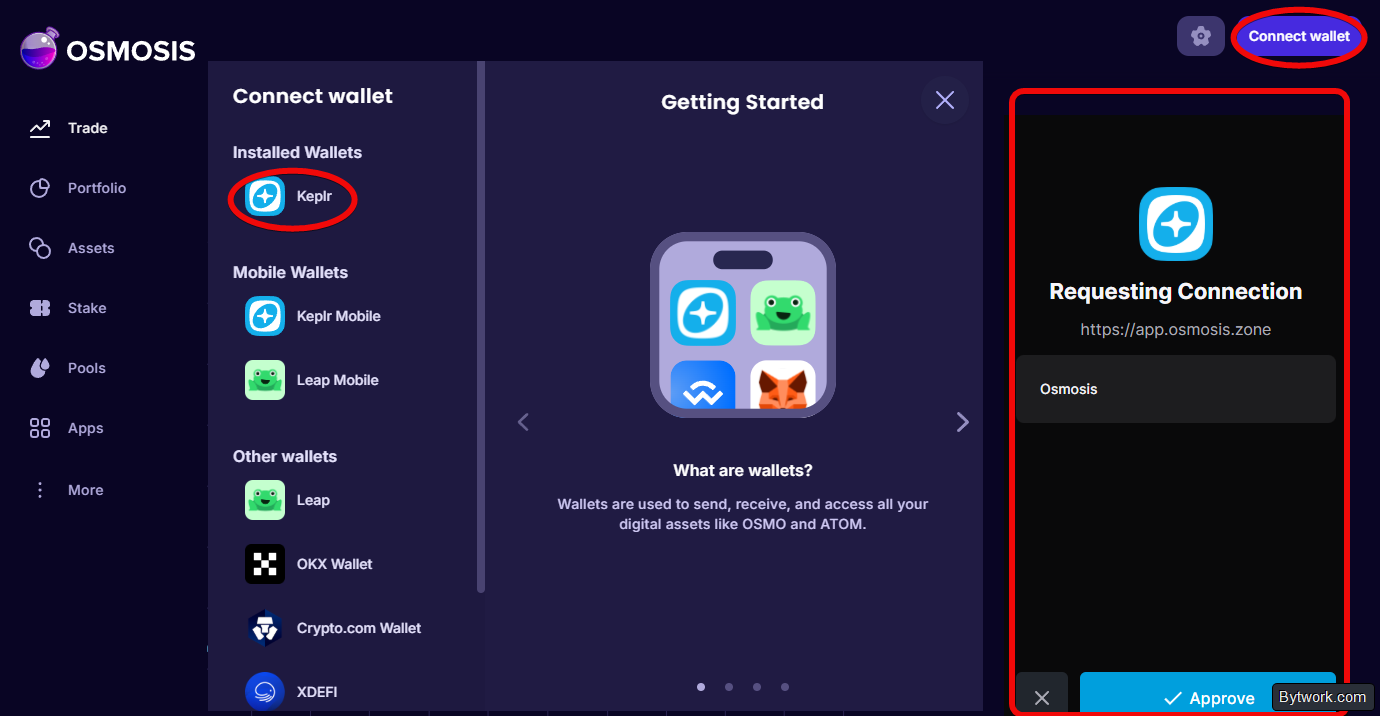
For security, it's worth periodically reviewing and revoking permissions from connected DApps. This can be done in the settings menu under Connected websites.
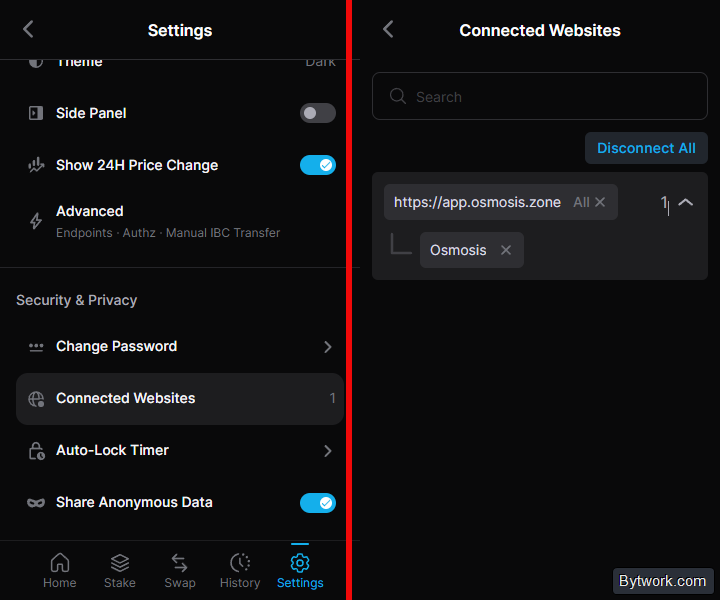
Also, it's better to search for dapps through the wallet's built-in web dashboard and its Explore tab. This way you are guaranteed not to encounter phishing.
How to manage accounts?
If you need multiple accounts, click on the name at the top left, then on the right click the plus. You can create a new account or import with a seed phrase.
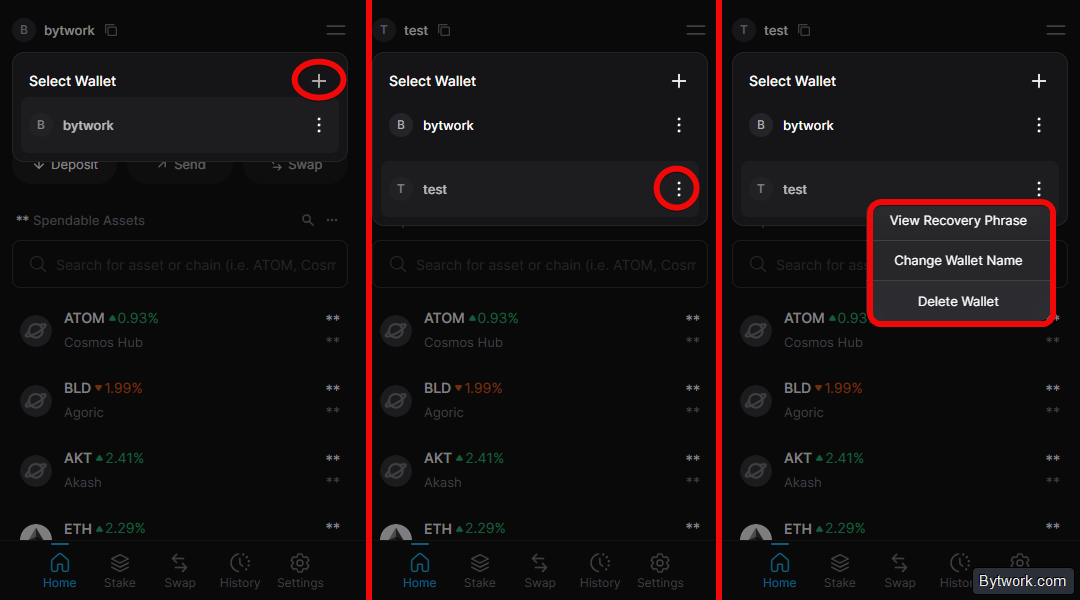
You can switch between wallets in the same menu. If you need to delete a wallet, select it, click on the 3 dots, and choose Delete Account.
To view your seed phrase again, again click on the 3 dots, select the corresponding item, then enter your password - and that's it. This is useful if you forgot where you wrote down the phrase.
Settings and contacts
The menu with 2 lines opens the main settings. In the General section, you can change the language, balance currency (e.g., dollars), and the app theme (dark/light).

The activated Side Panel Mode feature will display the wallet from the PC side panel.
In the Contacts section, it's convenient to save frequent addresses for withdrawals. Example: copy the Atom address from the Bybit exchange (without Memo), return to the wallet, go to settings, select Contacts, click Add New Contact.

Paste the address, label it (e.g., Bybit Atom), and save. You can also change the contact name or address if something changes. Later, when sending, it will be easy to simply select the saved contact from the list.
Network management and advanced settings
An important point - adding new chains. Go to settings, select Add or Remove Chains and toggle the checkbox next to the network you need.

You can also add custom tokens. To do this, select Add Custom token and paste the contract address.
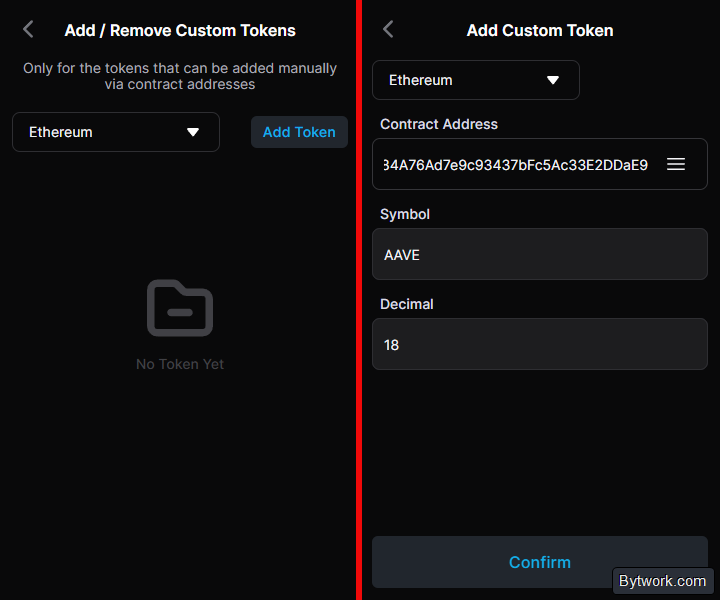
Contract addresses can be taken from Etherscan. Example for AAVE:

In the Advanced section, you can change the RPC address if there are lags, but over years of use, there has never been a need for this.

Finally, in the Security section, you can change the password.
We have covered absolutely everything that Keplr has. However, for objectivity, we need to look at the disadvantages.
What are the disadvantages of this wallet?
There is a critical flaw in terms of connecting to sites. When approving access for one wallet address, all your other addresses also gain access to that site. When switching to another address in the extension, the site automatically starts working with it.
Also, despite supporting many networks, the wallet does not work natively with Solana, XRP, Cardano, etc. Although tokens from these networks can be stored on EVM chains (e.g., BNB Chain), this can confuse inexperienced users.
Fees are also not the lowest – 0.75% for swaps.
And finally, it's a hot wallet (always connected to the internet). And this greatly reduces security due to hackers.
Conclusion: is it worth using?
Keplr has a very good reputation: more than 1 million people use the wallet. It is known for its friendly interface, innovative and intuitive design, which works seamlessly with applications in the Cosmos ecosystem. Unfortunately, the Cosmos ecosystem itself sometimes receives unfair criticism due to its modular architecture, but the wallet's reputation remains strong.
The wallet has not been involved in any hacks or other negative incidents. For reputation, we give 4 stars out of 5.
On the other hand, if you need a multi-chain wallet, why not use the browser-based OKX, Bitget or even MetaMask with Bitcoin and Solana support?
Whether to use this wallet or choose one from the comparison rating - the final answer is always up to you. In the rating, we researched the security of more than 100 crypto wallets.
Have a great day! Your editor - Maxim Anisimov for the site bytwork.com.
Disclaimer: all information provided in this article should not be taken as financial advice. The article was created for educational purposes. Never invest more than you can afford to lose, and seek advice only from your personal financial advisor.
Wallet support:


