Ledger Flex Wallet: Overview, Top-up, Setup, and Staking

- There have been breaches in the past
- Limited memory for apps
- Closed-source code
- Clear Signing feature – displays transactions in a simple, easy-to-understand format
- Convenient touchscreen
- Can be used as a key to log into exchange accounts
Ledger Flex is a hardware wallet for securely storing BTC, ETH, Solana, and other cryptocurrencies. It supports buying, exchanging, and staking 15,000+ multichain assets, letting you store crypto and earn on it.
To manage your funds, Ledger connects to a PC via USB‑C cable and to a phone via Bluetooth.

Ledger devices are the most controversial on the market: millions use them, but paranoids and experienced crypto folks criticize them. We tested this model and will break down its drawbacks, including the reasons for the hate.
Overview
Flex is the largest Ledger wallet (78 x 6 x 8 mm, 57.5 g), but compact enough to carry. Aluminum frame, plastic back, curved edges – it feels premium, but it's not a brick in terms of weight.

The 2.84-inch touchscreen is protected by Gorilla Glass and uses 16‑grayscale colors like an e‑reader. This ensures clear transaction display and the Clear Signing feature – all transaction info is visible on screen at once. This reduces the risks of blind‑signing malicious transactions.
In the box you'll find a USB‑C cable, 3 sheets for your seed phrase, a recovery card, and instructions.

A bit more tech specs:
- You can set any photo as the lock screen, like on a smartphone.
- The battery lasts up to 10 hours or roughly 150 transactions.
- Bluetooth 5.2, NFC.
- CC EAL6+ security chip (ANSSI certified).

Let's start the review with a list of pros and cons. First, the good stuff.
7 pros of Ledger Flex
- Clear Signing feature (ERC‑7730) – transparent transaction display instead of cryptic code. For example, you see a transfer of 100 USDT instead of machine code. This is crucial for security. Here we described the main reasons hardware wallets get hacked using another wallet as an example.
- Protected screen directly linked to the Secure Element chip (EAL6+). It guarantees that what you see is what you sign – protecting against address and amount spoofing.
- E Ink touchscreen (2.84") – like an e‑reader: energy‑efficient, readable in sunlight, more convenient than the Nano S.
- Security key (2FA/passkeys) – works as a FIDO2 key for logging into Google, Binance, Coinbase accounts with on‑screen confirmation.
- Secure Element EAL6+ chip – bank‑grade offline storage of private keys.
- Reputation – 13 years on the market, 7+ million devices sold, 1.5 million monthly Ledger users.
- DeFi and staking – Ethereum, Solana and others directly in the Ledger app.

Now let's get to the interesting part and talk about Ledger's downsides.
5 drawbacks of Ledger
- Closed source code – Ledger's OS for the chip is closed. This makes it impossible to audit the code for bugs or backdoors. Crypto enthusiasts call it a black box, but Ledger justifies the secrecy as protection against hackers (like bank vaults).
- Controversy around Ledger Recover – this service stores encrypted fragments of your seed phrase with identity verification. It shocked privacy advocates. However, the feature is optional and solves the problem of lost access for beginners (Reddit is full of such stories). We are against storing seeds in the cloud, but it might be helpful for newcomers.
- Limited support for older devices – Ledger drops support for old models (Nano, Nano S), pushing you to buy new ones like the Flex. This is annoying, like excessive upselling.
- High fees – the Ledger app inflates fees for BTC/ETH swaps. This costs 1–7% via providers.
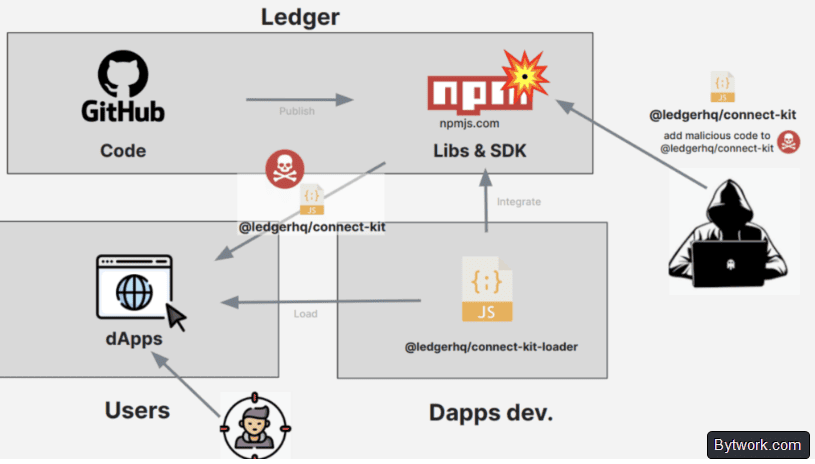
- Past security incidents – GitHub breach ($600k), Shopify data leak with personal information.
Finally, we'll share our personal opinion on how secure the Ledger Flex really is.
What about security and features?
Honestly, Ledger has been through several security incidents. There was the GitHub Connect breach in 2023 ($600,000 theft) and the Shopify data leak in 2020. Private keys were not compromised. The company handled the aftermath, though the data leak left a bad taste.
The Ledger operating system that runs the Secure Element chip in the Flex has closed‑source code. This draws criticism from experienced users who cannot independently verify the code for vulnerabilities or backdoors.
Ledger explains this as necessary protection against hackers: disclosing the code would make it easier to find weaknesses. Instead, the company runs third‑party security audits (ANSSI) and a Bug Bounty program.
Overall, it has everything you'd expect from a hardware wallet.
Hardware protection:
- CC EAL6+ chip isolates private keys, like in bank cards.
- Protected screen is directly controlled by the chip, preventing data spoofing.
- PIN code (4–8 digits). 3 wrong attempts wipe the device.
Transaction verification:
- Clear Signing (ERC‑7730) shows details in plain language instead of code, no blind signing.
- Transaction Check function analyzes Ethereum transactions for threats before signing.
Key ownership:
- 24‑word seed phrase – your key if you lose the device. You store it yourself.
- Smart card Ledger Recovery Key creates a seed backup with a tap.
- Passphrase (25th word) creates a hidden wallet.
Extra security:
- Genuine Check option when connecting to the Ledger app confirms the device's authenticity.
- Security Key (FIDO2) via NFC/BT – this is a physical 2FA key for accounts and exchanges.
In the end, if you overlook past incidents like the GitHub hack, the Ledger Flex has all the aspects of decent hardware security. Now let's see how easy it is to set up.
How to set it up?
There are 2 methods to set up your Ledger Flex wallet:
- Set up using a smartphone
- Set up on a PC.
Both methods are secure and simple; the process is essentially the same. The only difference is that when setting up via PC, you connect the wallet with the included USB‑C cable, and when using a phone, you use Bluetooth.
Connect your Ledger to a smartphone or PC
First, download the Ledger app on your smartphone. When downloading, it's important to verify the app's authenticity to avoid phishing. Check the number of installs and reviews.
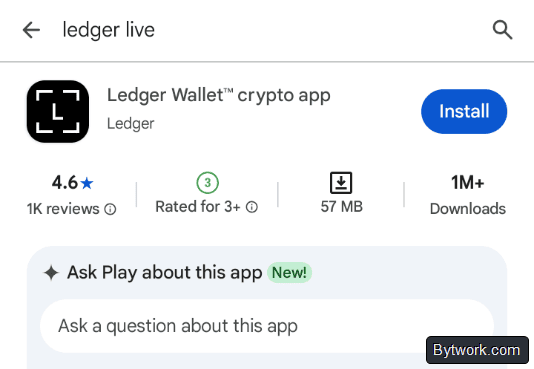
After downloading, open the app and tap Get Started. Then choose whether you want Ledger to personalize your experience by sharing data with the Ledger app, then tap Set up your Ledger.

Before selecting the device in the app, turn on the hardware wallet. Then tap Ledger Flex in the app – your phone will start searching for the device. Make sure Bluetooth is enabled on your phone. A Bluetooth code will appear.

If the code on your phone matches the code on the Ledger, tap Pair and confirm on the device. Great – your Flex is now paired with your phone!
Updating the OS
Next, verify that your Ledger is genuine and running the latest OS version. Tap Check Ledger Flex on your phone, then tap Allow on the Ledger device to establish a secure connection. If a Flex OS update is available, tap Update now, review the details, and tap Start OS update.

Wait for everything to install.
Now that the OS is updated, let's continue the setup.
Setting a name and PIN code
You can give your Ledger a custom name – let's call it Bytwork. Then tap the Ledger screen to continue.
Next, choose a PIN code. Ledger allows a code from 4 to 8 digits.

Keep in mind: 3 consecutive wrong PIN entries will reset the Ledger to factory settings!
Tap Choose PIN, enter the code, then enter it again to confirm. Tap to continue, then select Set up as a new Ledger.

Now comes the most important step in terms of security.
How to create a backup?
Now Ledger will generate your recovery phrase. Tap to continue, read Ledger's important messages, prepare the sheets to write down the phrase, and make sure you are in a private place.
No one should see your secret words – anyone who learns your recovery phrase can permanently steal your assets!
Review the security tips, confirm that you understand them, then tap the screen and write down your words one by one in order.

After you have written all the words, tap Done. Now confirm each word: tap Start confirmation and confirm all 24 words one by one.

If you entered everything correctly, you'll see Secret Recovery Phrase confirmed. Tap to continue.
Review the final reminders and move to the next step – installing apps.
Installing apps and skipping Ledger Recover
Why do you need apps? Each cryptocurrency (Bitcoin, Ethereum, Solana, etc.) operates on its own protocol. For your Ledger Flex to communicate with a specific network, generate addresses, and sign transactions, it needs the corresponding app.
If you want to install the default apps, tap Install apps. You'll need to allow a secure connection to the Ledger.

Then a promotional offer for Ledger Recover appears. We prefer to manage our own seed phrase, so we skip this step. To do that, tap the cross in the upper‑right corner.

Now you're ready to use the wallet!
How to use it?
All operations with the hardware wallet are done through the Ledger Wallet app. There you can buy, sell, exchange, and natively stake cryptocurrencies for passive income. But let's start with addresses.
How to get an address?
To get addresses, you need to install each blockchain inside the Ledger app. In the app, go to Accounts, tap Add account, and create an account for the desired asset.

For security, it's important to compare the addresses in the app and on the hardware wallet – they must match. To verify addresses, tap Verify your address in the app.

As you can see – the addresses match. Now you can top up the wallet.
How to top up?
To top up, in the Ledger app menu select Receive and the account to receive funds. On the hardware wallet screen, verify the generated address matches the one in the app.
Copy the address or scan the QR code, paste it into the withdrawal field on an exchange or in another wallet, and confirm the send. After the blockchain confirms, the balance will update.

Another way to top up is direct purchase in the app. We'll do this with the PC version of the app because it's more convenient.
By the way, the mobile app syncs with the PC version. There's a Ledger Sync feature in settings. Sync is located in Settings -> General. You can also find it in Accounts.
How to buy crypto directly in the wallet?
To buy cryptocurrency, tap Buy in the app, select the coin and enter the amount.
The system will offer several providers with different rates and fees – you can compare and choose the most suitable option.

After selecting a provider, confirm the purchase – the app will redirect you to the provider's page to complete the payment.
This is convenient, but third‑party provider fees can range from 1% to 7%. For example, when we executed a transaction via Topper, the fee was 3%.
How to make a swap?
To make a swap, tap Swap and select the cryptocurrency you want to exchange from your portfolio in the app.
The system will show rates from several providers, allowing you to choose the best one.

After choosing a provider and entering the swap amount, tap Exchange, then confirm the deal on the hardware wallet by swiping.
How to withdraw or send crypto?
To withdraw funds from the Ledger Flex, open the Send tab in the app, select the desired cryptocurrency, paste the recipient's address, and enter the amount.
Then choose the transaction speed and fee. You have preset options like Slow, Medium, and Fast. You can also manually adjust the fee and speed.

Then confirm the details on the device. An important security option appears – Enable transaction check. This feature warns about suspicious or dangerous Ethereum transactions in real time.
Next, open the corresponding app and carefully check the address and amount. Hold the button to sign.

The transaction confirms on the blockchain in about 15 seconds, but it may take longer to appear on an exchange.
What are the fees?
Fees fall into 3 categories:
- Buying and swapping – via partners like MoonPay, fee 1–7%. Experienced users often use external exchanges because built‑in fees are higher.
- Network fees (gas) – depend on the blockchain, not on Ledger. You choose the priority (slow, medium, fast). However, Ledger's algorithms sometimes overestimate fees for BTC and ETH. To save money, we use UTXO or connect to Sparrow.
- Paid services – Ledger Recover (monthly subscription).
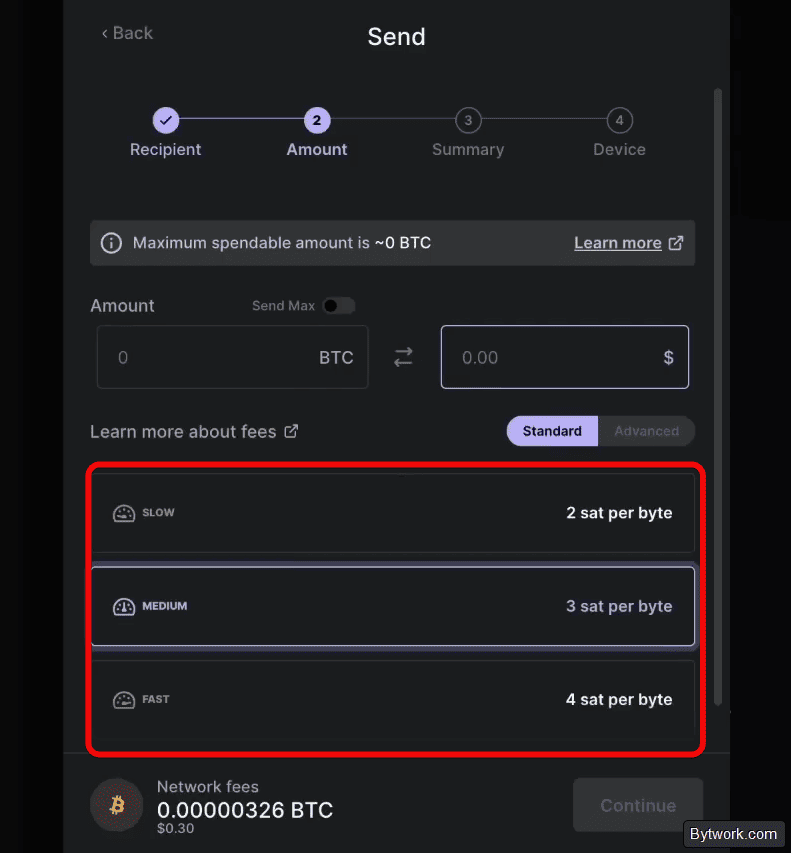
When sending a transaction, you can manually set satoshis/byte (Bitcoin) or gas (Ethereum), avoiding Ledger's inflated rates. But setting it too low may cause the transaction to get stuck in the blockchain or never confirm.
How to earn passive income with staking?
To start staking, tap Earn in the app, select an asset, and review the annual percentage yield (APY).
The wallet will offer several staking providers. After choosing a provider, enter the amount (or tap Max) and confirm the action on the Ledger hardware wallet.

By the way, Bitcoin staking is available through integration with Lombard in the Discover section. The yield is 0.5–1% APY with receipt of the liquid token LBTC.
Staking security on the Ledger Flex is self‑custodial: private keys are stored in the chip, crypto remains on the blockchain, and the device only authorizes operations. This minimizes hacking risks when interacting with DeFi.
However, always carefully study the protocol's terms before staking through the Ledger app.
How to recover the wallet?
Recovering access to your assets on the Ledger Flex depends on the backup method you chose. In reality, funds are stored on the blockchain, not on the device, so recovery means restoring access to private keys.
To recover, go to the Reset menu. Warning: this will completely wipe the wallet to factory settings.
Method 1 – via seed phrase (24 words)
When to use: loss, device damage, or three wrong PIN attempts (factory reset).
How to recover? Select Restore access to assets –> choose phrase length –> enter the words using the on‑screen keyboard –> the device will confirm the phrase and restore access.

Method 2 – Ledger Recovery Key (NFC card)
This method works if you recorded your seed phrase on an NFC card. Select Restore using Ledger Recovery Key –> tap the card to the back of the device –> enter the card's PIN –> access will be restored.
Method 3 – Ledger Recover (subscription)
This is a paid cloud service that stores your seed phrase. It will work if you subscribed to Ledger Recover.
Select recovery via Ledger Recover –> complete KYC with the provider. Access is restored even if you lose the device and your paper phrase.
After recovery, all accounts will automatically appear in the Ledger app once you connect the wallet and open the corresponding app.
What advanced features are available?
Inside the hardware wallet there are important security features: passphrase and PIN Shuffle. The passphrase creates a completely separate, hidden wallet not linked to the main one, leaving no trace of its existence. There are two modes: temporary (entered manually each time via the Advanced menu) and permanent, tied to a separate PIN (e.g., 4321 vs. your main 1234).

It's important to understand that if you forget your passphrase, funds are permanently lost – even having the 24 recovery words won't help, because an incorrect passphrase simply opens an empty wallet. At the same time, an attacker who gets your 24 words cannot access the hidden wallet without knowing the passphrase.
The PIN Shuffle feature randomizes the digits on the keypad when you enter your PIN. This protects against shoulder surfing when you type your PIN.
Other settings are in the app. In settings, you can choose the language and color theme. You can also enable MEV Protection. This protects Ethereum transactions from bot manipulation.

You can also choose the currency for displaying balances, e.g., USD.
The device can also be used as a hardware key for two‑factor authentication on Google, Coinbase, Binance, and other services. Using NFC or Bluetooth, you can log into accounts by simply tapping the Flex to your smartphone or laptop.
Finally, the Ledger Flex supports stateful MultiSig, allowing you to verify full wallet descriptors, cosigner keys, and receiving addresses to protect against data spoofing.
What are the differences from the Ledger Gen5?
Ledger Flex ($249) and Ledger Nano Gen5 ($179) have identical security levels (Secure Element CC EAL6+ chip, FIDO2 2FA support), but differ in their screens. The Flex has a resolution of 480×600 pixels and 16 grayscale shades, while the Gen5 has 400×300 and 2 grayscale shades.

The Flex weighs 58 g and has an aluminum frame, while the Gen5 is lighter (46 g) and fully plastic. With a $70 price difference, the Gen5 is a better deal for those who don't need the premium image clarity.
What are the drawbacks of this wallet?
The Flex's buttons are smaller due to the smaller screen compared to the Stax version. This leads to typos when entering passwords or seed phrases.
Also, the device does not have wireless charging.
And another thing – no backlight. You can't use the wallet in complete darkness.
In terms of security, unlike some competitors, the device does not support updating or signing transactions via QR or SD card – it always requires a physical connection via USB, Bluetooth, or NFC. This is a vulnerability.
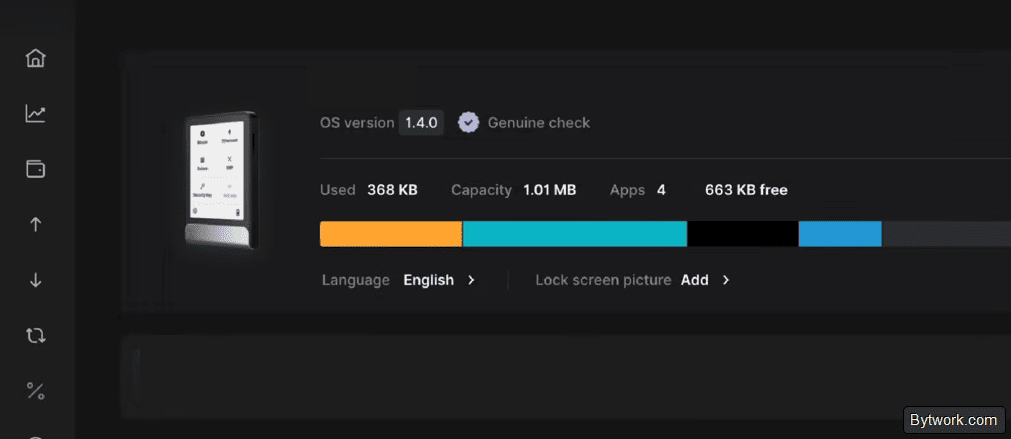
It's also annoying that memory is limited (1.1–1.5 MB). That's less than the older Nano X model (about 2 MB). You'll have to frequently reinstall blockchain apps.
Finally, the included USB‑C cable is too short and not high enough quality for a premium device.
Verdict: is it worth using?
We've been using the cheapest Ledger for a long time – its capacity is still enough for us. The main issue is that you can only install 5–6 apps for major cryptocurrencies on the device (like the original Nano S). The Flex itself is high‑quality, with an aluminum body, but the back is plastic. For €250, we'd expect more. The cable is cheap, and the always‑on display drains the battery – you have to recharge every 5–6 days.

The device has closed‑source code (except for some components), requires connecting to the Ledger app for firmware updates, and does not support air‑gap mode. Air‑gap would allow signing transactions via QR.
Previously, Ledger's customer database suffered a data leak, compromising phone numbers, email addresses, and in some cases, physical addresses of users. So think for yourself, decide for yourself.
The choice of wallet is up to you – we compared the security of 100+ options in our rating. Have a great day! Your editor Maxim Anisimov, bytwork.com.
Disclaimer: this is not financial advice, the material is for educational purposes only.
Wallet support:


